Polymarket Open Orders and Cancel Orders in Telegram: Limit Orders, Balance, and Risk
How to manage Polymarket open orders from Telegram: cancel stale limit orders, review reserved balance, partial fills, stop rules, failed orders, and portfolio risk.

PolyBot Team
Updated June 1, 2026
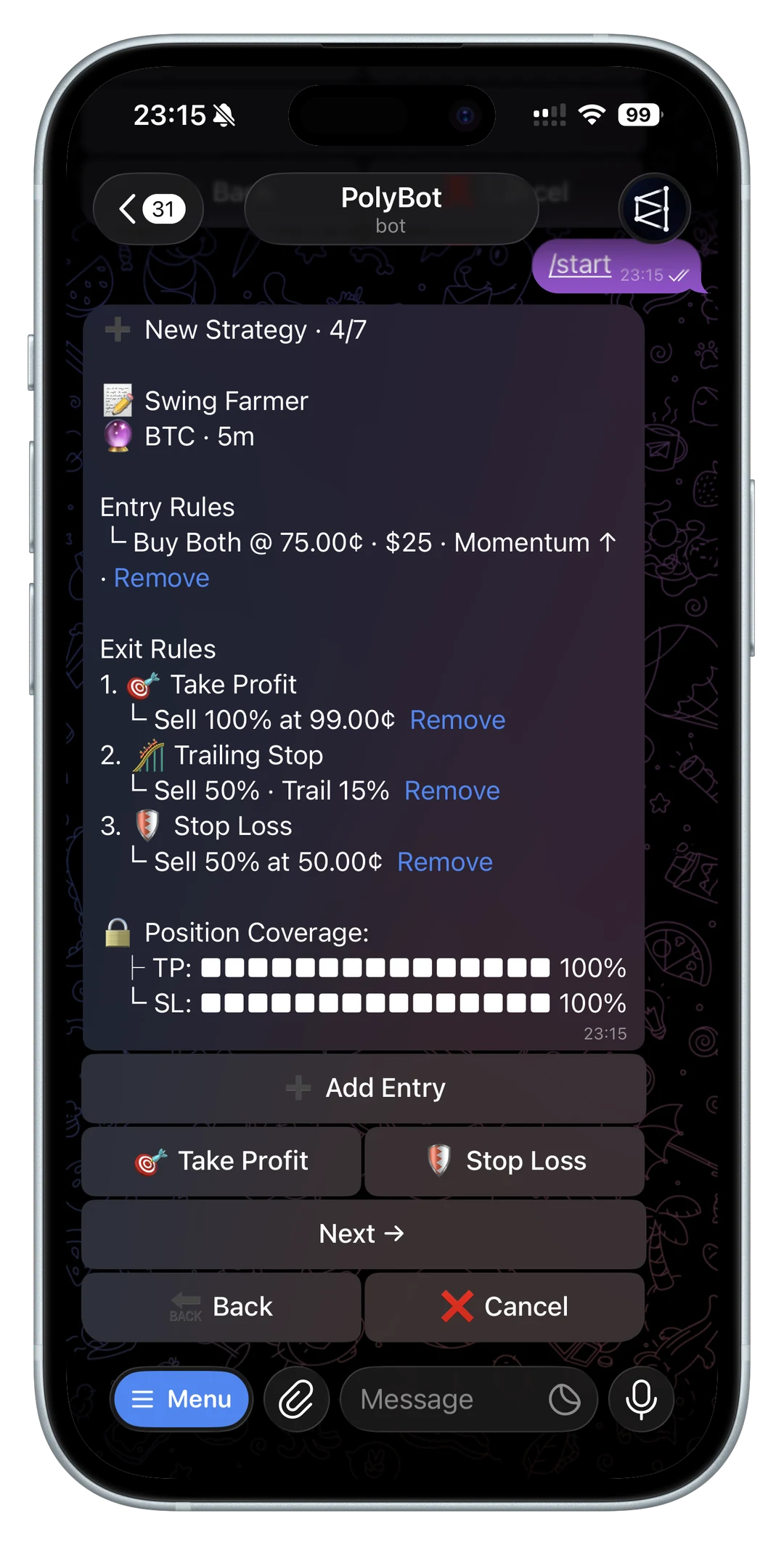
Open orders are easy to forget because they are not finished trades yet.
That is exactly why they matter. A resting limit buy can reserve balance. A resting limit sell can reserve shares. A partially filled order can leave both a real position and an unfilled remainder. A stale order can fill later after the market, news, or your thesis has changed.
This guide explains how to manage Polymarket open orders from Telegram: when to cancel a limit order, how open orders affect available balance, why partial fills need review, how cancel-all differs from closing positions, and how to keep orders, portfolio, PnL, and trade history connected.
If you need the full account workflow first, read the Polymarket portfolio and orders guide. If you are placing a resting order for price control, use the Polymarket limit orders guide. If the order is resting because you want maker-style execution, read the Polymarket maker vs taker guide. If an order only filled part of the requested size, use the Polymarket partial fills guide before cancelling, retrying, or assuming the account state is unchanged.
If the immediate question is why the order has not matched yet, use the Polymarket limit order not filled guide before cancelling a valid resting order.
What an open order means
An open order is an order that still has unfilled size.
In a Polymarket trading workflow, that usually means a limit order is resting until one of these things happens:
- the market trades at the order's price
- part of the order fills
- the full order fills
- the order expires, if it has an expiration
- the user cancels the order
- the market state changes in a way that prevents normal trading
Open does not mean harmless. It means the order can still affect the account.
An open buy can reserve funds that would otherwise be available for a new trade. An open sell can reserve shares that would otherwise be available for a market sell, limit sell, stop rule, or manual exit. If the order later fills, the account exposure changes even if you are no longer watching that market.
That is why open-order review belongs next to portfolio review, not in a forgotten menu.
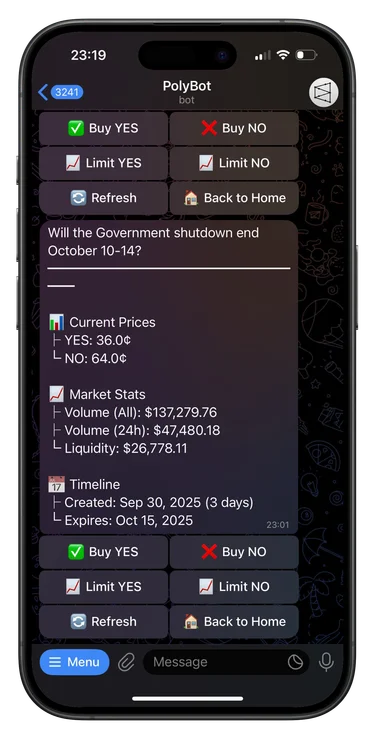
Why open orders become risky
Open orders are useful when they match a plan. They become risky when the plan expires but the order remains.
Common stale-order situations include:
- breaking news changes the market
- the event nears resolution
- liquidity disappears
- a copied wallet exits while your order remains
- a limit buy sits after the trader no longer wants exposure
- a limit sell remains after the trader changed the target
- a partial fill leaves a smaller position and a leftover order
- a stop loss, strategy exit, or preset overlaps with a manual order
- the trader forgets that balance or shares are reserved
The problem is not that limit orders exist. The problem is leaving them active after the reason for the order is gone.
Before placing a new order in the same market, check the old ones. Before selling a position, check whether shares are already reserved. Before assuming balance is missing, check whether open orders are holding it.
For broad account review, use the Polymarket portfolio tracker bot guide.
How PolyBot exposes open orders
PolyBot's official Portfolio & Orders Guide describes an Orders hub available from the main menu or /orders. It shows open limit-order count, active stop-loss count, links to presets and portfolio, and cancellation controls for open limit orders.
That matters because order management is not only a backend action. It is a trader workflow.
A useful open-order view should show:
- market name
- outcome side
- buy or sell side
- limit price
- current price
- original size
- fill progress
- remaining unfilled size
- related position, if any
- cancel action
- cancel-all action where appropriate
PolyBot's official Trading Guide also describes order management as part of the same Telegram trading workflow as market buys, sells, and limit orders.
The practical habit is simple: after every limit order, know where it lives and how to cancel it.
Cancel order is not the same as sell position
Cancelling an open order stops the unfilled part from filling later.
It does not sell an existing position. It does not redeem a resolved winner. It does not undo shares that already filled.
That difference matters in three common cases.
First, if a limit buy partially filled, cancelling the remainder does not remove the filled position. You still own the shares that matched.
Second, if a limit sell partially filled, cancelling the remainder does not buy back the sold shares or close the rest. It only stops the remaining sell from continuing.
Third, if the market already resolved, cancelling an old order is separate from redeeming winning shares or clearing a settled losing position.
Use the how to sell a Polymarket position guide for exits. Use the auto-claim and redeem winnings guide for resolved markets.
Cancel one order versus cancel all
Cancel one order when only one idea is stale.
Cancel all when you want to clear every open limit order in the relevant view and rebuild from a clean state.
Cancel one may fit when:
- one market has new information
- one limit price is no longer valid
- one order is blocking a sell
- one partial fill created an unwanted remainder
- one ladder level should be removed
Cancel all may fit when:
- you are done trading for the day
- you are switching strategies
- you want to free reserved balance
- you cannot tell which order is causing the issue
- a broad market event changed many related orders
- you need to pause and review before adding exposure
Polymarket's official cancel order documentation describes cancel flows for single, multiple, all, and market-filtered open orders at the API layer. In a Telegram workflow, the user-level question is whether you are cancelling one stale plan or clearing a whole set of resting orders.
Do not use cancel-all casually if you are intentionally laddering entries or exits. It can remove orders that still fit the plan.
Open orders and available balance
Open orders can make balance look confusing.
A trader may see funds in the account but still fail a new order because some of that balance is already committed to a resting buy. A trader may see shares in a position but fail to sell the expected amount because some shares are reserved by an open limit sell, stop rule, or strategy exit.
Before assuming something is broken, check:
- open limit buys
- open limit sells
- active stop losses
- strategy exits
- copied-trade activity
- partial fills
- failed or pending cancellations
- minimum order size
- resolved positions that need redeeming
This is especially important before withdrawals. A balance can be visible but not fully available if orders, active positions, or pending actions still matter.
For funding and cash-out context, read the Polymarket deposit guide, Polymarket cash-out guide, Polymarket withdrawal guide, and Polymarket withdrawal failed guide.
Partial fills need a separate decision
Partial fills make open-order review more complicated.
If an order filled halfway, you now have two facts:
- the filled part changed the account
- the unfilled part may still be open, cancelled, or waiting
Do not treat that as a clean success or a clean failure.
After a partial fill, ask:
- how many shares filled?
- what average price filled?
- how much remains open?
- is the remaining size still useful?
- did the best depth already disappear?
- would retrying chase worse prices?
- should the remainder be cancelled?
- should the position be reviewed before another order?
A partial fill can be acceptable when smaller exposure still fits. It is dangerous when the trader ignores the leftover order or assumes the full size exists.
Use the Polymarket partial fills guide for the full review path.
Limit buys, limit sells, and stale exposure
Limit buys and limit sells create different open-order risks.
A limit buy can create new exposure later. That is useful when your target entry remains valid. It is dangerous when the market has changed and you no longer want the position.
A limit sell can reduce exposure later. That is useful when your target exit remains valid. It is dangerous when you think you still hold all shares freely, but some are reserved by the open sell.
Review limit buys for:
- whether the target entry still makes sense
- whether the market wording changed
- whether news invalidated the idea
- whether another order already created enough exposure
- whether available balance is needed elsewhere
Review limit sells for:
- whether the target exit still makes sense
- whether you still want to sell that quantity
- whether a stop rule also exists
- whether the order partially filled
- whether the market is close to resolution
For price-control mechanics, read Polymarket limit orders from Telegram.
Stop losses and presets can overlap with orders
Open-order review should include active exit rules.
A stop loss is not the same as a limit sell, but both can affect whether shares are available for other actions. Strategy exits, take-profit rules, trailing stops, and presets can also create expected future actions that need review.
Before adding a new manual exit, check whether the position already has:
- a limit sell
- a stop loss
- a take-profit rule
- a trailing stop
- a strategy exit
- copied-trade behavior that might sell automatically
The goal is not to avoid rules. The goal is to avoid overlapping actions that make the portfolio harder to understand.
For exit rules, read the Polymarket stop loss and take profit guide. For laddered entries and exits, read the Polymarket scale-in and scale-out guide.
Cancel orders before changing strategy
Changing a strategy while old orders remain open can create accidental exposure.
This can happen when a trader:
- switches from manual trading to copy trading
- pauses an auto trader but leaves manual orders
- stops following a market but leaves a target buy
- changes category filters but leaves old positions or exits
- moves from a news setup to a longer-term thesis
- decides to reduce risk but leaves laddered entries active
Before changing strategy, run an order cleanup:
- Review open orders.
- Cancel stale orders.
- Check partial fills.
- Check positions created by earlier fills.
- Review PnL and current exposure.
- Confirm whether active stops or presets remain.
- Only then place new orders or restart automation.
For automated strategy context, read the Polymarket Auto Trader bot guide. For copy-trading settings, read the Polymarket copy trading settings guide.
Order cancellation and API trading
If you build directly against Polymarket's CLOB, cancellation becomes part of the bot's safety boundary.
Posting orders is only half the system. A trading bot also needs to query open orders, cancel stale orders, handle partial fills, reconcile trades, and avoid leaving hidden exposure after errors.
At the API layer, cancellation requires authenticated trading permissions. Polymarket's docs also expose open-order queries and order fields such as side, size matched, price, outcome, order type, and created time.
For developers, a minimum order-management loop should answer:
- what open orders exist?
- which market and outcome do they affect?
- how much size has already matched?
- how much size remains?
- are they still inside the intended strategy?
- can stale orders be cancelled quickly?
- are cancel failures surfaced to the user?
- does the bot reconcile trades after cancellation?
For developer-focused safety, read the Polymarket API trading bot guide and the Polymarket API keys and wallet permissions guide.
Common open-order mistakes
The most common mistakes are simple:
- placing a limit order and never checking it again
- assuming cancelled means filled shares disappeared
- forgetting that open buys reserve balance
- forgetting that open sells reserve shares
- retrying a failed order without checking old orders
- using cancel-all and deleting intentional ladder orders
- leaving stale orders after breaking news
- leaving exits active after the position size changed
- judging PnL without checking open orders
- trying to withdraw before freeing reserved balance
Most of these mistakes come from separating trading into disconnected screens. The safer habit is to treat orders, positions, PnL, alerts, and history as one workflow.
For alerts around order status, read the Polymarket notification bot guide. For historical review, use the Polymarket trade history guide.
Practical open-order checklist
Before placing a limit order:
- What market and outcome is the order for?
- Is it a buy or sell?
- What price makes the trade valid?
- How long does the thesis remain valid?
- Is partial fill acceptable?
- How will I know if it filled?
- When will I cancel it?
- Does it overlap with another order or exit rule?
After placing a limit order:
- Check
/ordersor the order-management view. - Confirm price, side, size, and market.
- Watch for partial fills.
- Review available balance or reserved shares.
- Cancel if the market changes.
- Cancel if the order blocks a better action.
- Record the final outcome in portfolio or trade history.
Before cancelling:
- Is any part already filled?
- Does cancellation apply only to the unfilled remainder?
- Will cancelling free balance or shares?
- Does another stop, preset, or strategy exit still exist?
- Do I need to sell, redeem, or withdraw separately?
The best open-order habit is not complicated: every resting order should have a reason, a review path, and a cancellation rule.
FAQ
What is an open order on Polymarket?
An open order is an order with unfilled size that can still match later. In a Telegram workflow, it is usually a resting limit buy or limit sell that should be reviewed until it fills, cancels, expires, or no longer matters.
How do I cancel a Polymarket order from Telegram?
Use the order-management view, such as /orders in PolyBot, to review open limit orders and cancel one order or use cancel-all where appropriate. Always check whether part of the order already filled before assuming cancellation removed all exposure.
Does cancelling an order close my position?
No. Cancelling stops the unfilled part of an open order. It does not sell shares that already filled, redeem a resolved winner, or undo an existing position.
Why is my Polymarket balance unavailable?
Open limit buys can reserve funds, while open limit sells, stop rules, or strategy exits can reserve shares. Check open orders, active exits, partial fills, and redeemable positions before assuming funds are missing.
Should I cancel all open orders?
Cancel all can be useful when you want to clear stale orders and rebuild from a clean state. Do not use it casually if you intentionally placed laddered entries, target exits, or market-making orders that still fit the plan.
What should I do after a partial fill?
Review the filled shares, average price, remaining open size, and current market depth. Then decide whether to keep the remainder open, cancel it, complete the position another way, or stop trading that market.
Why Did My Polymarket Limit Order Not Fill? Price, Liquidity, and Open Order Fixes
A practical guide for Polymarket traders whose limit order is still open, partially filled, stale, rejected, or not matching from Telegram.
Execution / 9 min
Polymarket Limit Orders From Telegram: Price Control and Order Management
Learn how Polymarket limit orders work in a Telegram bot: limit buys, limit sells, GTC orders, stale orders, cancellations, partial fills, and when market orders are safer.
Execution / 8 min