Polymarket Telegram Bot Settings: Trading Mode, Quick Buy, Slippage, and Safety
How Polymarket Telegram bot settings affect execution: trading mode, quick-buy amounts, manual slippage, auto-claim, exit presets, language, 2FA, and key export.

PolyBot Team
Updated June 1, 2026
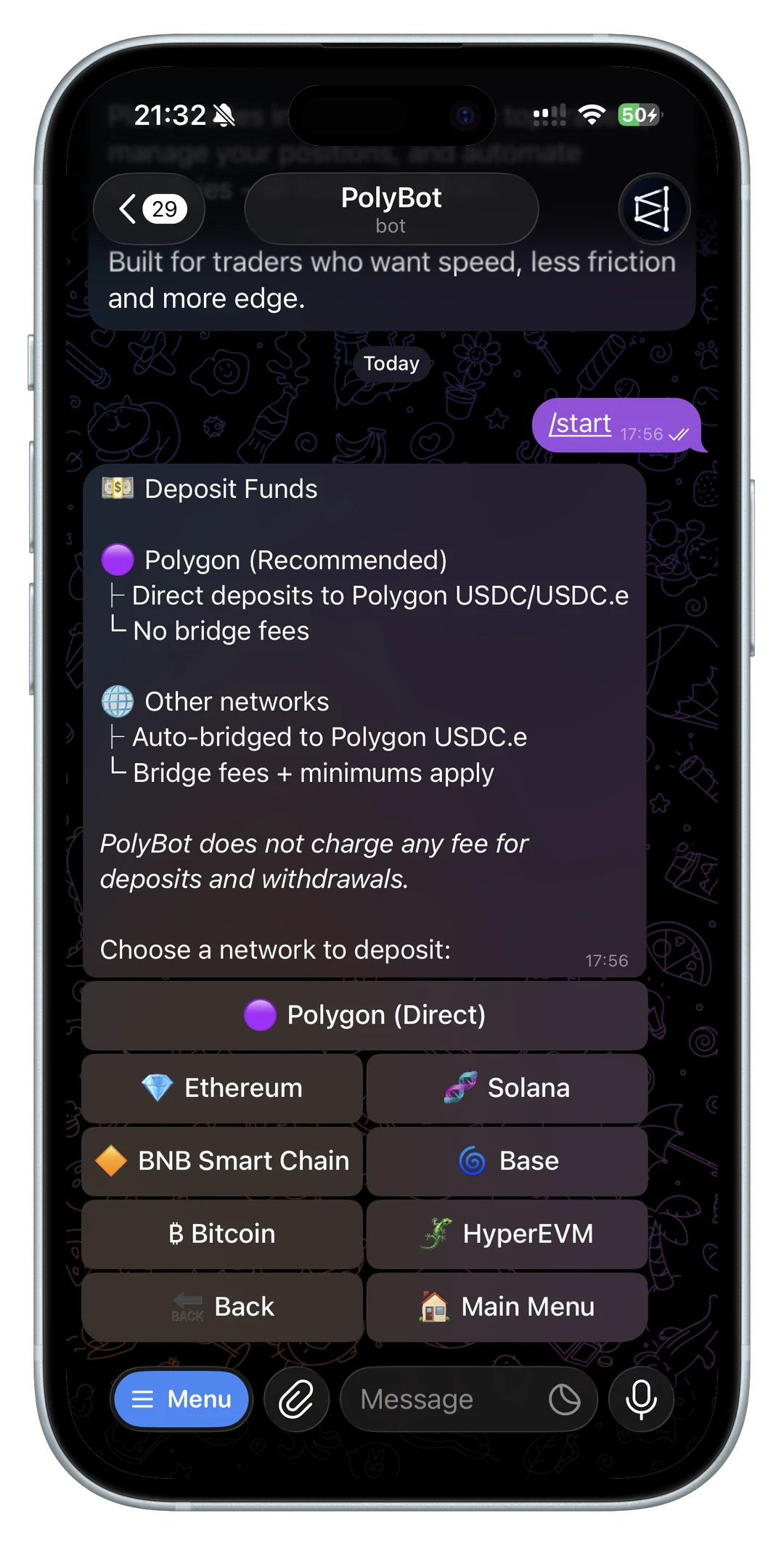
Settings are where a Polymarket Telegram bot becomes either controlled or careless.
Fast buttons are useful only when the defaults behind them match your trading style. If quick-buy amounts are too large, slippage is too loose, auto-claim is misunderstood, or a fast execution mode is enabled before you are ready, the bot can make mistakes easier to repeat.
PolyBot's official Settings Guide documents the account settings that shape execution behavior, shortcuts, security, and defaults. The official Trading Guide explains how quick-buy amounts and order confirmations appear in the actual trade flow.
This guide translates those settings into a practical checklist for Polymarket Telegram bot users.
Start from the settings menu
PolyBot settings are opened with /settings or from the main menu. The important thing is not the exact button path. The important thing is that settings control defaults that apply later when you are moving quickly.
Before using any bot with real funds, check:
- trading mode
- quick-buy amounts
- manual buy slippage
- auto-claim state
- auto-apply preset state
- PnL card display preference
- language
- 2FA
- private key export behavior
If you are new to the workflow, read the Polymarket Telegram bot for beginners before changing speed-related settings.
If you are changing settings for sniper-style entries, read the Polymarket sniper bot guide before raising quick-buy amounts or reducing confirmations.
If you are changing settings for strategy automation, read the Polymarket Auto Trader bot guide before increasing size, slippage, or automatic defaults.
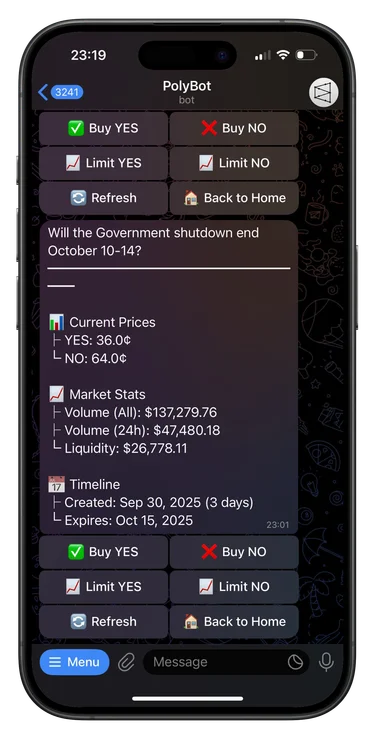
Trading mode changes the confirmation rhythm
Trading mode decides how aggressively the bot prioritizes speed.
PolyBot's docs describe Standard, Fast Mode, and Ludicrous Mode. Standard keeps confirmations in the normal flow. Fast Mode can auto-submit market orders up to a configured threshold, while orders above that threshold still require confirmation. Ludicrous Mode is the fastest path and should only be used when you understand the tradeoff.
Use Standard mode when:
- you are new to the bot
- you trade larger positions
- you are testing deposits and withdrawals
- market wording needs careful review
- liquidity is thin or unstable
Consider faster modes only when your process is already disciplined and the market type rewards reaction speed. A 5-minute crypto market and a long-dated political market should not necessarily use the same execution setting.
For the broader speed tradeoff, read why execution speed matters in prediction market copy trading.
For manual fast-entry decisions, use the Polymarket sniper bot guide alongside this settings checklist.
Quick-buy amounts should match bankroll, not ambition
Quick-buy buttons are convenient because they reduce taps during market orders. PolyBot's docs describe default quick-buy amounts and the ability to customize the left, center, and right buttons in settings.
The risk is that preset amounts can normalize oversized trades.
Set quick-buy amounts around:
- your usual test trade size
- your normal position size
- your maximum size for fast manual entries
- the liquidity of the markets you usually trade
- whether the amount is small enough to recover from an input mistake
A common pattern is to make the left button a small review size, the center button your normal size, and the right button a size you only use when the market has enough liquidity and the thesis is clear.
For a full sizing framework, read the Polymarket position sizing guide before raising quick-buy defaults or fast-mode thresholds.
If you are using quick buys as part of a broader command workflow, read the Polymarket Telegram bot commands guide.
Manual buy slippage is a price ceiling
Manual buy slippage controls how much price movement you are willing to accept on a market buy.
Tighter slippage can protect entry quality, but it may skip orders in fast markets. Looser slippage can increase the chance of a fill, but it can also accept a worse price. Any-slippage style settings should be treated as a special case, not a normal default.
Use tighter slippage when:
- spreads are wide
- order-book depth is low
- your expected edge is small
- you are testing a market
- the trade can wait
Use looser slippage only when you have a clear reason, such as a fast-moving setup where missing the fill is worse than accepting some price movement.
The liquidity, spreads, and slippage guide explains why this setting matters more in thin prediction markets than it might appear from the button flow alone. The Polymarket slippage tolerance guide covers how to decide whether a tighter or looser setting fits the trade.
Auto-claim is an operations setting
Auto-claim is not a trading strategy. It is a settlement workflow.
When enabled, PolyBot can automatically redeem winning positions after markets resolve. That helps keep resolved winnings from sitting forgotten outside the active trading balance. It can also reduce manual portfolio cleanup for users with many small positions.
Before enabling auto-claim, check:
- whether you understand what gets redeemed
- whether losing positions are cleared from the view
- whether notifications are useful or noisy
- whether manual redemption remains available
- whether you still review realized results
The dedicated Polymarket auto-claim and redeem winnings guide covers the redemption workflow in more detail.
If auto-claim changes what you see in balance or portfolio history, use the Polymarket PnL tracker guide to separate open-position value from redeemed results.
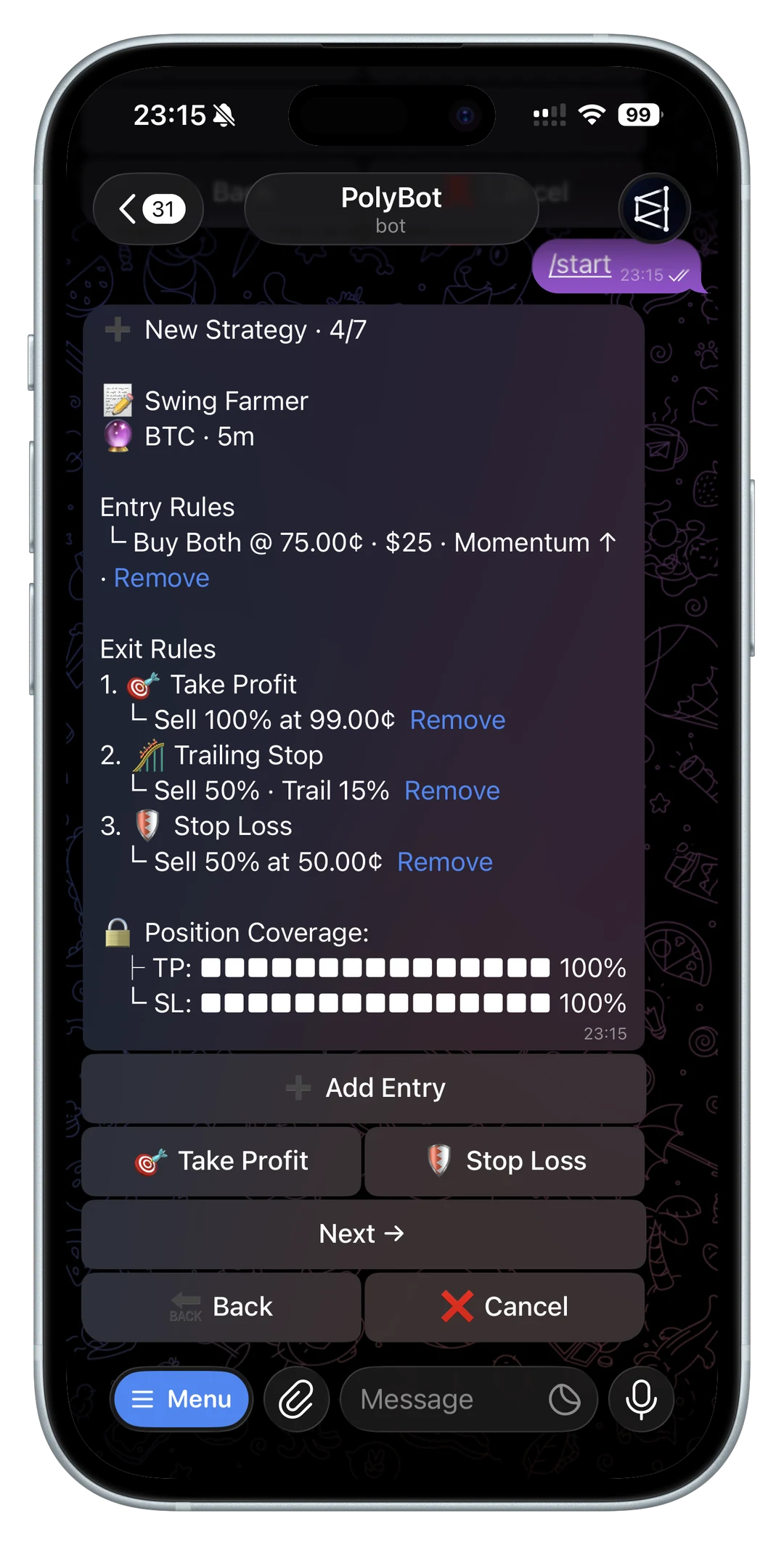
Auto-apply presets require a default exit plan
Auto-apply presets attach a default exit preset to new purchases. That can be useful when you already know the exit logic you want every trade to carry.
The mistake is turning on auto-apply before the preset has been tested.
Before using auto-apply, ask:
- does the preset fit your usual market type?
- does it fit your normal position size?
- will it behave well in thin markets?
- do you know where active preset orders appear?
- can you cancel or revise the rules quickly?
For reusable exit rules and standalone downside controls, read stop loss, take profit, and trailing stops on Polymarket.
Language and PnL display reduce mistakes
Settings are not only about trading speed.
Language and PnL display affect how clearly you understand the interface. If a bot supports multiple languages, use the one that helps you read market actions, warnings, and wallet screens without hesitation. If PnL cards can show percent, dollars, or entry context, choose the format that helps you review decisions clearly rather than the format that looks best in a group chat. For sharing-specific context, read the Polymarket PnL card guide.
For group workflows, remember that social discussion and private execution are different. The Polymarket Telegram group trading bot guide explains how group discovery should stay separate from private trade confirmation.
2FA and private key export are security-critical
Settings also include sensitive account controls.
PolyBot's docs describe 2FA as protecting withdrawals and private key exports. They also describe private key export as a sensitive backup action where the key is shown briefly and should never be shared.
Before exporting any key, ask:
- why do I need the key?
- where will I store it?
- is 2FA enabled?
- am I using the official bot?
- am I alone on a trusted device?
- could a fake support account be pressuring this action?
For the full safety checklist, read the Polymarket Telegram bot 2FA guide, the Polymarket API keys and wallet permissions guide, and the non-custodial Polymarket Telegram bot guide.
A conservative starter setup
For a new user, a conservative settings profile might look like this:
- Standard trading mode
- small left quick-buy amount
- normal center quick-buy amount
- right quick-buy amount below your maximum risk limit
- tight or moderate manual slippage
- auto-claim disabled until you understand redemption, or enabled only after reading the docs
- auto-apply preset disabled until a default preset has been tested
- 2FA enabled before meaningful deposits
- private key export avoided unless you know exactly why you need it
This setup is slower than an aggressive configuration, but it gives you more chances to catch mistakes while learning.
Review settings after your first real trades
Settings are not one-time onboarding choices.
Review them after:
- your first deposit and withdrawal test
- your first few manual market buys
- your first limit order
- your first resolved market
- your first copied trade
- your first automated strategy
- any account-security concern
For a first automated strategy, use the Polymarket Auto Trader bot guide before widening scope or running multiple strategies at once.
If a setting caused confusion, shrink it. Smaller quick-buy amounts, stricter slippage, Standard mode, and fewer automatic defaults are all valid choices when the goal is control.
If the confusing setting was related to copied wallets, review the Polymarket copy trading settings guide before changing sizing, slippage, caps, filters, or skip-reason behavior.
If the confusing state appeared after funding, use the Polymarket deposit not showing up guide before changing trading settings or sending more funds.
For the cash-out side of the first wallet test, read the Polymarket cash-out guide, the Polymarket Telegram bot withdrawal guide, and the Polymarket withdrawal failed guide.
Use settings to make fast trading deliberate
A good Polymarket Telegram bot settings page should make risk visible before the user acts quickly.
Trading mode, quick buys, slippage, auto-claim, presets, language, 2FA, and key export all shape how the product behaves later. Review them before you need them. A fast workflow is only useful when the defaults behind it match your actual risk limits.
Not investment advice, legal advice, or security advice. Prediction markets can lose money, fast settings can amplify mistakes, and every setting should be verified against current official docs before funding or trading.
Polymarket API Trading Bot Guide: CLOB, API Keys, Orders, and Safer Automation
What to know before building or using a Polymarket API trading bot: CLOB authentication, API keys, signed orders, order types, order-book data, errors, secrets, and safer Telegram automation.
Product Guide / 10 min
Polymarket Auto-Claim and Redeem Winnings in Telegram: Resolved Markets, Payouts, and Balance
How Polymarket auto-claim and manual redemption work in a Telegram bot: resolved markets, winning shares, claim-all, pending redemptions, pUSD balance, notifications, and troubleshooting.
Product Guide / 9 min