Polymarket Telegram Bot Commands: What to Use Before, During, and After a Trade
A practical guide to PolyBot commands for Polymarket traders: start, wallet, search, portfolio, orders, copy trading, presets, strategies, settings, and group search.

PolyBot Team
Updated June 1, 2026
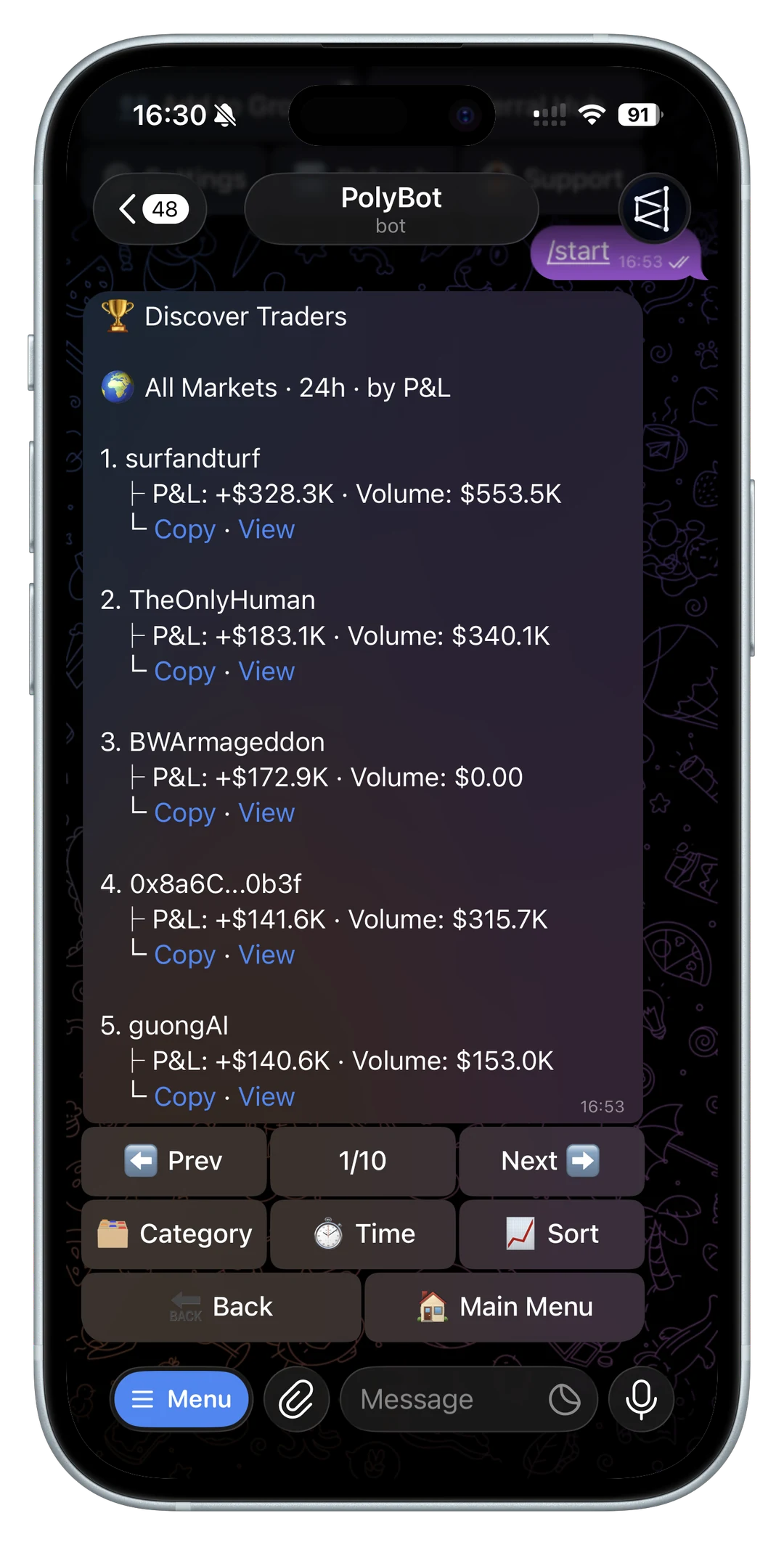
Commands are the fastest way to move around a Polymarket Telegram bot.
Buttons are useful once you are inside a flow, but commands give you a predictable way to start, recover, search, review positions, manage orders, adjust settings, and open copy-trading tools without scrolling through old messages.
PolyBot's official docs list the core direct-message commands and the group command. This guide explains how to think about those commands as a trading workflow.
If you are new to Telegram trading, start with the Polymarket Telegram bot for beginners. If you are comparing products, read how to choose a Telegram trading bot for Polymarket.
If you use commands mainly from a phone, read the Polymarket mobile trading bot guide to keep search, wallet, portfolio, orders, and alerts recoverable from mobile.
If commands are usually opened from Telegram notifications, read the Polymarket notification bot guide so price alerts, order updates, copied trades, and portfolio reminders route to the right command or view.
Start commands: /start, /home, and /help
Use the start commands when you need a clean entry point.
/start begins the bot session or opens a deep link. If you click a market link, copy-trading link, referral link, or apply link, /start is usually the command that routes the bot into the right context. For attribution details, read Polymarket Telegram bot referral program.
/home returns to the main menu. Use it when an old message is no longer useful, when you are unsure which state the bot is in, or when you want the current menu instead of a stale button.
/help opens help and FAQ content. Use it before assuming a flow is broken. Many Telegram issues come from using an old message, missing context, or not understanding which menu owns a feature.
For official links and impersonation checks, read official PolyBot links and fake bot safety before opening any bot from a random DM or forwarded message.
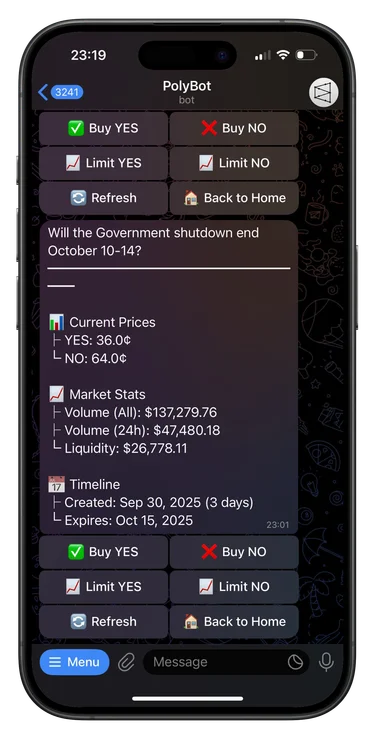
Wallet command: /wallet
Use /wallet before you trade.
Wallet state affects nearly every action:
- whether you can deposit
- which network or asset flow you are using
- whether funds are available for trading
- whether open orders are reserving balance
- how withdrawals work
- whether gas is needed
- whether you understand the custody model
Do not treat wallet setup as a one-time onboarding step. Check it again after deposits, withdrawals, failed orders, or copied trades that may have used available balance.
For custody, fees, gas, and wallet-control questions, read the Polymarket Telegram bot fees and custody checklist.
For the funding flow itself, read the Polymarket Telegram bot deposit guide before sending funds.
If a transfer was already sent but the bot balance has not updated, use the Polymarket deposit not showing up guide before sending another test deposit.
For the exit path, read the Polymarket cash-out guide, Polymarket Telegram bot withdrawal guide, and Polymarket withdrawal failed guide before testing cash-out.
Search command: /search
Use /search when you have an idea but not a link.
A Telegram trading workflow usually starts in one of three ways:
- someone sends a Polymarket link
- you search for a market by keyword
- you follow a copied wallet or alert into a market
/search helps with the second case. It keeps discovery inside Telegram, which is useful when markets are moving and you do not want to switch between apps.
Search is not the same as validation. Before placing a trade, read the exact market question, outcome side, resolution source, expiry, prices, liquidity, and spread. A fast command can open the market quickly, but it cannot decide whether the market is worth trading.
For browse modes, group search, and market-card review, read the Polymarket market search in Telegram guide. For multi-outcome event structure, read the Polymarket negative-risk markets guide.
For the manual trading workflow, read the Telegram trading bot for Polymarket guide.
Portfolio command: /portfolio
Use /portfolio after you trade.
The post-trade workflow matters because Polymarket positions do not end when the order fills. You may need to:
- review open positions
- check PnL
- sell part of a position
- redeem resolved outcomes
- inspect exposure across markets
- decide whether a stop-loss or exit preset should be added
Many traders focus on entry speed and ignore portfolio review. That is a mistake. A fast entry with poor follow-up can leave stale exposure, forgotten orders, or unresolved positions sitting longer than intended.
Read the Polymarket portfolio and orders guide for the full post-trade checklist. For settlement cleanup, read Polymarket auto-claim and redeem winnings.
Orders command: /orders
Use /orders to manage open limit orders.
For when to cancel one order, cancel all, or leave a resting order active, use the Polymarket open orders and cancel orders guide.
Limit orders can protect price, but they can also become stale. If a market moves because of news, liquidity changes, or resolution timing, an old limit order may no longer reflect your thesis.
The /orders command is important because open orders can affect:
- available balance
- future order failures
- copied-trade sizing
- exit plans
- risk exposure
If an order fails, do not keep retrying blindly. First check open orders, available balance, allowances, market state, and liquidity.
For price-control details, read Polymarket limit orders from Telegram. For FOK, FAK, GTC, and GTD, read the Polymarket order types guide. For failure modes, read the Polymarket order failed error codes guide.
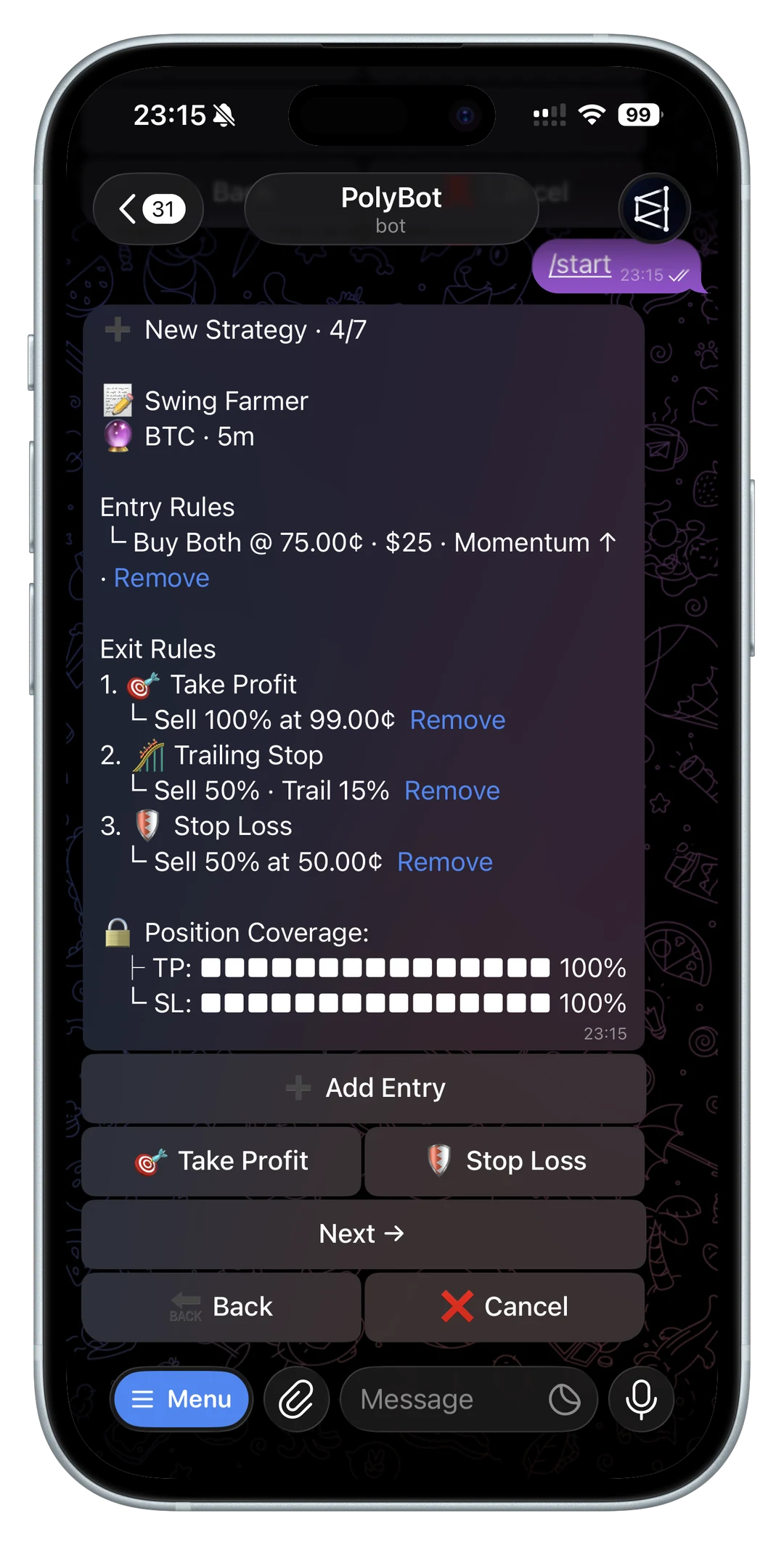
Stop-loss and preset commands: /stoploss and /preset
Use /stoploss and /preset when you want exits to be planned before emotion takes over.
A stop loss is a downside rule. A preset is a reusable exit setup. Both can be useful when you trade actively, copy wallets, or hold positions that may move while you are away from Telegram.
Before using exit automation, check:
- which position the rule applies to
- whether the trigger is price-based or percentage-based
- how much of the position can be sold
- whether a take-profit, trailing stop, or stop-loss rule overlaps
- whether open limit orders already exist
Exit tools are not a substitute for risk sizing. They are a second layer after you decide how much risk the trade deserves.
For broader risk-control context, read Polymarket stop loss and take profit in Telegram and Polymarket portfolio and orders in Telegram.
Copy command: /copy
Use /copy when you want to mirror another wallet.
Copy trading is powerful because Polymarket wallet activity is public, but it is not a shortcut around research. A copied wallet may have a strategy that depends on speed, category knowledge, capital size, or full-position coverage. If your setup changes those assumptions, the copied result can be worse than the source result.
Before turning on copy trading, review:
- wallet PnL quality
- category mix
- average trade size
- open exposure
- whether trades happen in thin markets
- how much slippage you can tolerate
- whether daily caps and market filters are set
Use the Polymarket wallet analyzer before copying. If the wallet came from a large-trade alert, read the Polymarket whale alerts and wallet tracker guide. Then read how to copy trade on Polymarket from Telegram and the best Polymarket copy trading bot checklist.
For the actual subscription controls, use the Polymarket copy trading settings guide.
Strategy command: /strategy
Use /strategy for rule-based trading.
Automated strategies need more discipline than manual entries because they can fire when you are not actively watching the market. A good strategy setup should define:
- market type
- entry trigger
- trade size
- slippage tolerance
- exit rules
- entry window
- maximum exposure
If a strategy is too broad, it can trade markets you did not mean to include. If it is too loose, it can enter after the edge is gone. If exits are unclear, it can turn an automated setup into unmanaged risk.
For crypto up/down strategy context, read trading strategies for crypto up/down markets.
Settings command: /settings
Use /settings before you speed up the workflow.
Settings control the defaults behind fast actions. Before using larger quick-buy buttons, fast trading modes, manual slippage, auto-claim, 2FA, key export, or display preferences, make sure the defaults match your actual risk tolerance.
The most important settings to review are:
- trading mode
- quick-buy amounts
- manual buy slippage
- auto-claim
- auto-apply preset
- PnL card display
If your main question is how to share a position result safely, read the Polymarket PnL card guide before posting screenshots in a group.
- 2FA
- private key export behavior
For the full settings checklist, read the Polymarket Telegram bot settings guide.
Recent activity command: /recent
Use /recent to reconstruct what happened.
When trades are fast, memory is unreliable. Recent activity helps you review fills, actions, and workflow history without guessing from old chat messages.
Use it after:
- a failed order
- a partial fill
- a copied trade
- a stop-loss action
- a deposit or withdrawal
- a strategy action
The goal is to separate "what I intended" from "what actually happened." That matters for debugging and for improving settings before the next trade.
Group command: /polybot
Use /polybot [query] inside Telegram groups.
Group trading workflows are different from direct-message trading. A group is useful for discovery, discussion, and sharing market context. The actual trade should still happen in a controlled flow where the user can review wallet, market, order, and risk details.
In a group, the command can help members:
- search markets without leaving the chat
- share market cards
- discuss outcomes
- route interested users into the bot
- keep referral attribution cleaner
Before trading from group discussion, verify the market yourself. Group urgency can make weak ideas feel stronger than they are.
For product-level group workflow context, read the Telegram trading bot guide. For a dedicated group workflow checklist, read Polymarket Telegram group trading.
A simple command workflow for beginners
If you are new, use commands in this order:
/startto open the official bot./walletto understand funding and custody./settingsto keep speed and slippage conservative./searchto find a market or open a known link.- Review the market question, liquidity, and outcome.
- Place a small manual trade.
/portfolioto review the position./ordersif you used a limit order./recentif anything is unclear.
Delay /copy, /strategy, /stoploss, and /preset until you understand manual order behavior.
Commands are navigation, not risk management
Commands make the workflow faster and easier to recover, but they do not remove market risk.
Use them to keep your process structured:
- start from official links
- check wallet state before trading
- search with intent
- review positions after entries
- manage open orders
- configure settings before moving fast
- use copy trading and strategy automation only after analysis
The best command habit is simple: know where to go before the market moves. That gives you speed without losing control.
Not investment advice. Prediction markets are risky, and Telegram shortcuts should be used with clear sizing, wallet, and order controls.
Polymarket API Trading Bot Guide: CLOB, API Keys, Orders, and Safer Automation
What to know before building or using a Polymarket API trading bot: CLOB authentication, API keys, signed orders, order types, order-book data, errors, secrets, and safer Telegram automation.
Product Guide / 10 min
Polymarket Auto-Claim and Redeem Winnings in Telegram: Resolved Markets, Payouts, and Balance
How Polymarket auto-claim and manual redemption work in a Telegram bot: resolved markets, winning shares, claim-all, pending redemptions, pUSD balance, notifications, and troubleshooting.
Product Guide / 9 min